How to reclaim 10GB of iPhone space without deleting photos or apps
Few digital warning banners prompt immediate frustration quite like seeing “iPhone Storage Almost Full” right when you open your camera to record a quick video.
You might assume that you’re trapped in a terrible trade-off: Either delete three years of family photos or start uninstalling apps you actually use.
In reality, most of the storage bloat on your phone doesn’t come from your photo library or active application code. It comes from hidden caches, forgotten offline downloads, duplicate message attachments, and temporary system files.
You can easily claw back 10GB or more of space on your iPhone in a few minutes without deleting a single photo or uninstalling a single app. Here’s how to do it.
Purge hidden media attachments in Messages
If you’re in active group chats, your Messages app is likely sitting on gigabytes of high-definition videos, audio notes, and reaction GIFs sent over the years.
The best part? You don’t have to delete your text conversations to get that space back.
- Open Settings > General > iPhone Storage.
- Scroll down and tap Messages.
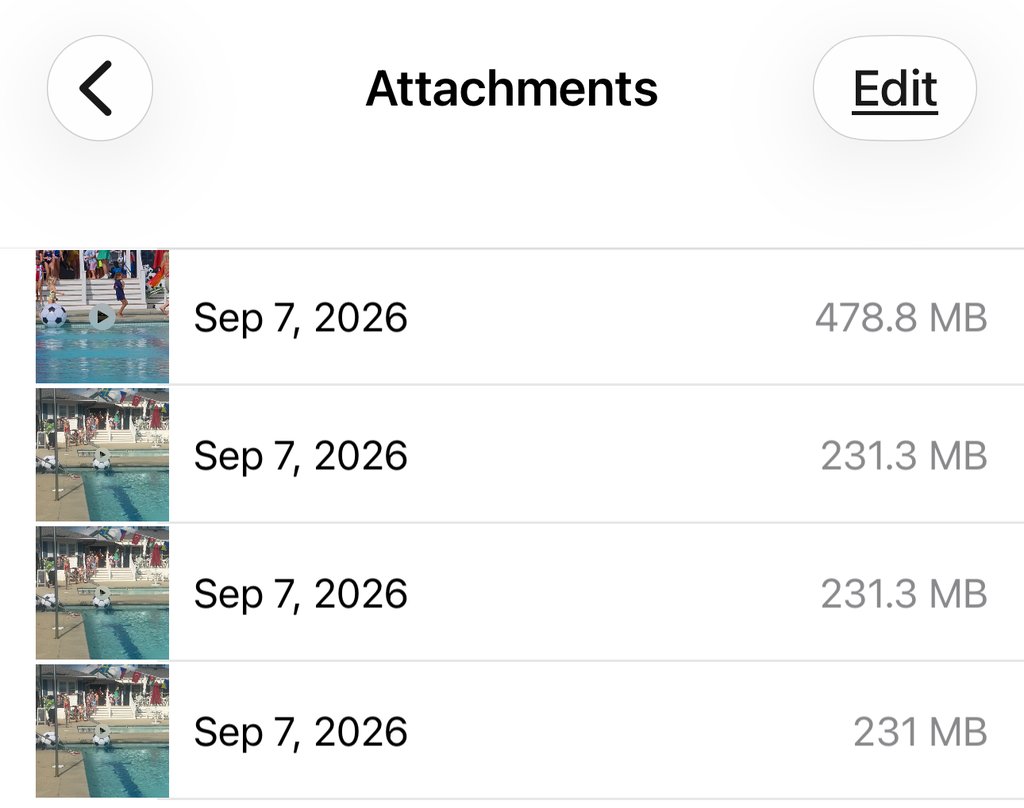
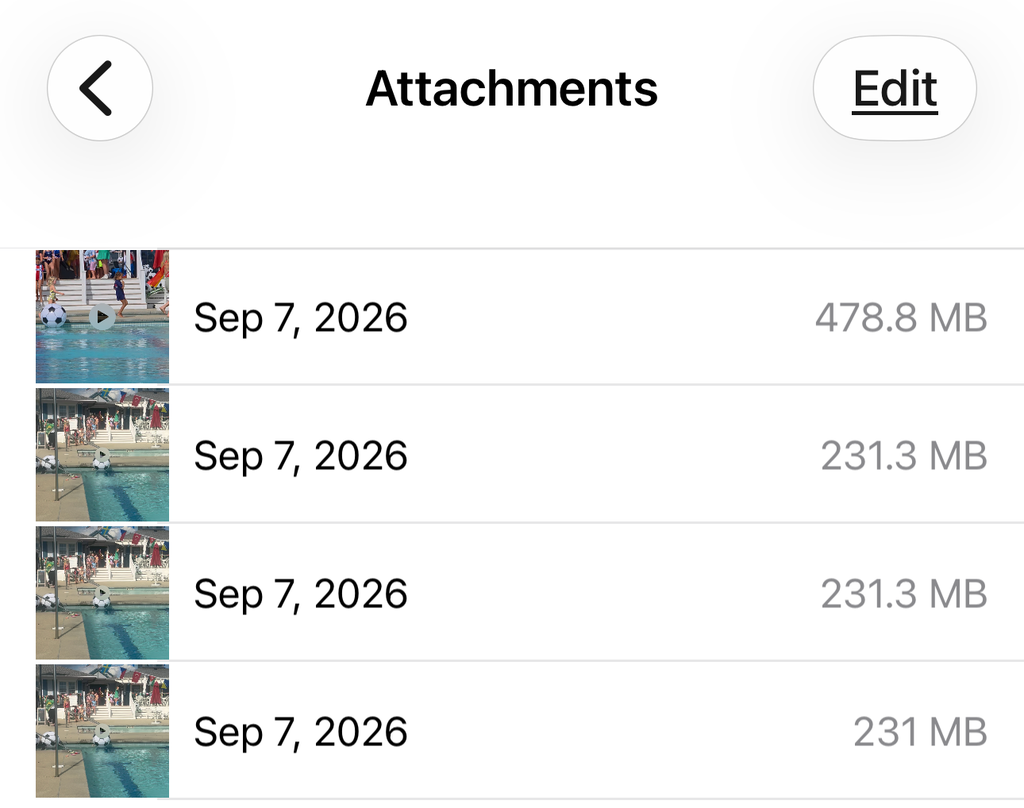
- Under the Documents & Data section, tap Review Large Attachments (or select individual categories like Videos or Photos).
- Tap Edit in the top right corner, select the massive video clips and attachments you no longer need, and hit the trash icon.
Deleting these heavy files clears out massive amounts of local storage while keeping your entire text history completely intact.
Clear forgotten offline downloads
Streaming apps like Netflix, Prime Video, Spotify, YouTube, and Apple Podcasts make it easy to download content for airplane rides or subway commutes.
The problem is that those apps rarely clean up after themselves. Three downloaded HD movies and a dozen podcast episodes can easily hoard gigabytes upon gigabytes of space quietly in the background.
- Video Apps: Open Netflix, Prime Video, or YouTube, navigate to your Downloads tab, and delete watched movies or entire TV seasons.
- Podcasts: Open the Podcasts app, go to Library > Downloaded, and swipe left to delete episodes you’ve listened to. To prevent future bloat, go to Settings > Podcasts and toggle on Automatically Remove Played Downloads.
- Music apps: Open Spotify or Apple Music, go to your downloaded albums list, and remove offline access for playlists you haven’t listened to in months. You can still stream them anytime over Wi-Fi or cellular.
Enable “Optimize iPhone Storage” for Photos
If you want to keep your entire photo library accessible without filling up your hardware, Apple built a solution directly into iOS.
Go to Settings > [Your Name] > iCloud > Photos and ensure iCloud Photos is toggled on, then select Optimize iPhone Storage.
Instead of storing massive 24-megapixel original files locally on your phone, iOS keeps lightweight, screen-ready thumbnail versions on your device while backing up the full-resolution originals to iCloud.
Whenever you tap a photo to view or edit it, the full-res version downloads on the fly. If you have a lot of photos, this single toggle reclaims a ton of space instantly without losing a single memory.
Offload unused apps without deleting their data
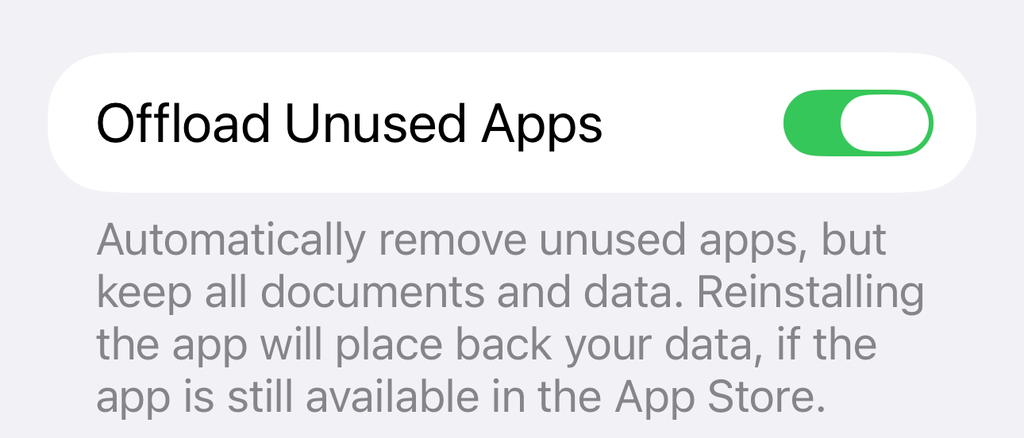
Deleting an app wipes out its local documents, saved progress, and custom settings. Offloading an app removes the underlying application code while preserving all your personal data, logins, and files.
- Manual Offloading: Go to Settings > General > iPhone Storage, tap a large app you haven’t opened in weeks (like a travel booking tool or heavy mobile game), and tap Offload App.
- Automatic Offloading: Go to Settings > App Store (or Settings > Apps > App Store) and toggle on Offload Unused Apps.
The app icon stays right on your home screen with a small cloud icon next to its name. The moment you tap it, iOS reinstalls the app instantly, picking up right where you left off with all your saved data intact.
Flush Safari cache and perform a hard restart
Browser caches and temporary system logs can swell over time, bloating the mysterious “System Data” block in your storage menu.
- Clear Web Cache: Go to Settings > Safari (or Settings > Apps > Safari), scroll down, and tap Clear History and Website Data.
- Force a System Cache Flush: Turn your iPhone off completely, wait 30 seconds, and turn it back on. Restarting forces iOS to clear temporary runtime caches, index buffers, and log files that accumulate in RAM and flash memory, often dropping System Data size by several gigabytes.